There's nothing quite as frustrating as settling in with a good book, only for your trusty Kindle to freeze, become unresponsive, or start acting strangely. Before panic sets in or you consider drastic measures, take a deep breath: often, the simplest solution is the most effective. A quick restart is like a magic reset button for your device, capable of resolving a surprising number of common glitches.
This guide will walk you through everything you need to know about giving your Kindle a fresh start, ensuring you can get back to your reading in no time. We'll cover both the standard and force restart methods, explain why they work, and help you understand when it's time to dig a little deeper into troubleshooting.
Why a Simple Restart Can Save Your Day
Think of your Kindle like a mini-computer. Over time, as you switch between books, download new content, or simply leave it on for extended periods, its temporary memory can get a bit cluttered. This accumulation can lead to slowdowns, frozen screens, or minor software hiccups that disrupt your reading experience.
A restart acts as a refreshing cleanse: it clears out that temporary memory and reloads the operating system from scratch. This simple action can effectively resolve freezing, fix lag, correct minor software glitches, and even potentially improve your device's battery life and overall smooth operation. It's always the first step in basic troubleshooting because it's safe, quick, and remarkably effective.
Two Paths to a Fresh Start: Standard vs. Force Restart
Depending on whether your Kindle is still somewhat responsive or completely frozen, you have two primary methods for restarting it. It's crucial to understand which one to use for the best results.
The Gentle Approach: Standard Restart
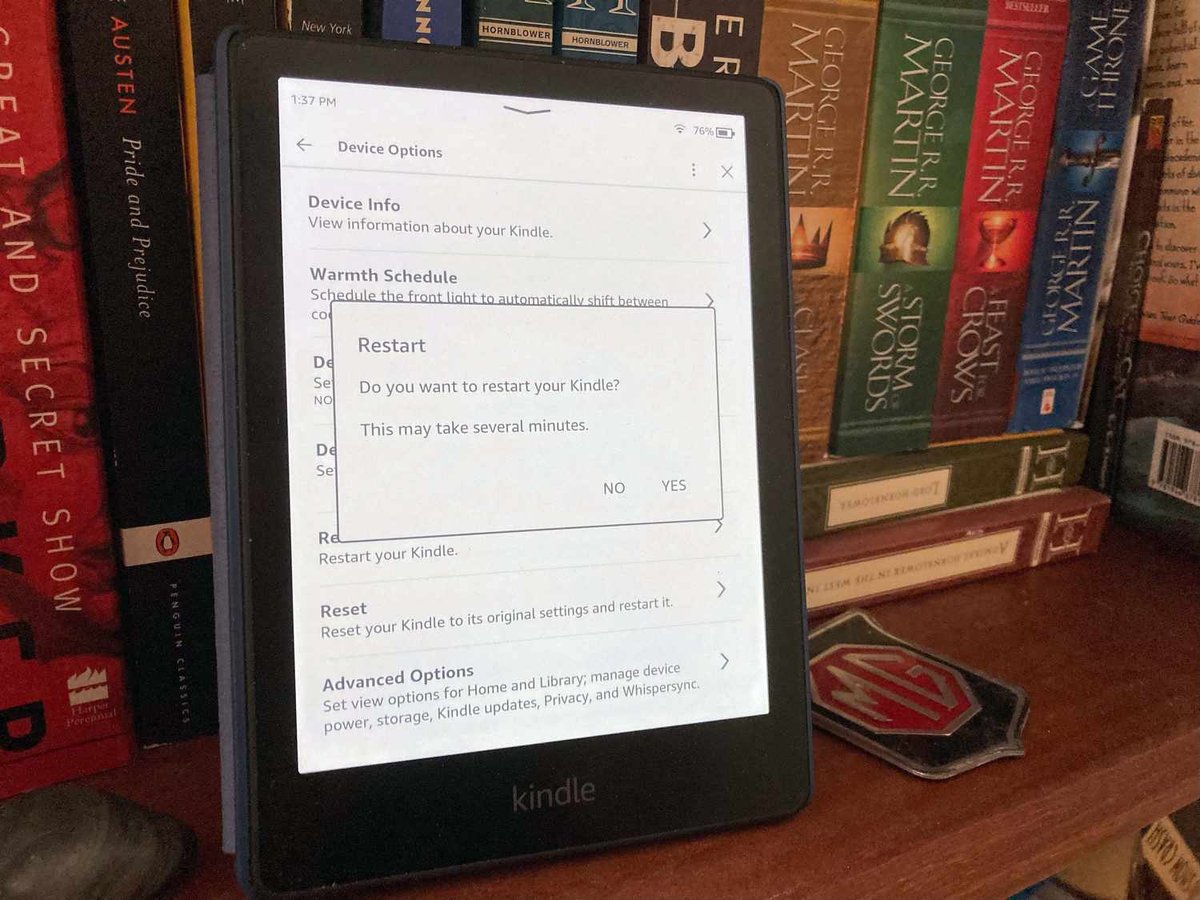
If your Kindle's screen is still somewhat responsive and you can access the menu, the standard restart is your first and preferred option. This method allows the device to shut down and reboot in an orderly fashion, ensuring all processes close correctly.
To perform a standard restart:
- Tap the top of your Kindle's screen to reveal the menu bar.
- Select the "Settings" icon (it usually looks like a gear).
- Within Settings, tap the "Menu" option (represented by three vertical dots).
- From the dropdown menu, choose "Restart" and confirm by tapping OK if prompted.
Your Kindle will take a couple of minutes to shut down and power back on. For a more detailed walkthrough of this procedure, you can consult our dedicated guide on How to restart your Kindle.
The Direct Method: Force Restart (Hard Reset)
Sometimes, your Kindle might be so frozen or unresponsive that you can't even access the settings menu. In these situations, a force restart—often referred to as a hard reset, though it's important not to confuse it with a factory reset—is necessary. This method safely reboots the device without deleting any of your books or personal data.
To execute a force restart:
- Locate the power button on your Kindle.
- Press and hold the power button firmly for a full 40 seconds. This duration is critical; many common mistakes occur when the button isn't held long enough.
- During this time, the screen might flicker, go blank, or display a restart logo.
- After 40 seconds, release the power button. Your Kindle should begin its restart sequence automatically. If it doesn't, wait a few moments and repeat the steps.
If your Kindle is completely frozen and you're struggling to get it going again, dive into our specific instructions for a successful Force restart your frozen Kindle.
Model-Specific Guidance: Restarting Your Kindle E-Reader or Fire Tablet
While the core principles of restarting remain the same across most Kindle devices, there are minor nuances depending on whether you own an e-reader or a Fire Tablet.
Kindle E-Readers (Paperwhite, Oasis, Basic, Scribe)
For most Kindle e-readers like the Paperwhite, Oasis, Basic, and Scribe, the standard restart via Settings > Menu > Restart, and the force restart by holding the power button for 40 seconds, apply universally. The user interface might look slightly different across generations, but the steps are fundamentally the same. If you're looking for precise, step-by-step guidance tailored to these popular models, you'll find it in our comprehensive article on How to restart your Kindle.
Kindle Fire Tablets
Kindle Fire Tablets, being full-featured Android devices, offer a slightly different standard restart process. For a standard restart on a Fire Tablet, you can usually press and hold the power button until a "Restart" option appears on the screen, then swipe to confirm. For a force restart, similar to e-readers, you'll press and hold the power button for approximately 40 seconds. If a Fire Tablet remains unresponsive after this, some models may require holding the power and volume up buttons simultaneously.
Beyond a Simple Restart: When to Troubleshoot or Seek Help
While restarting is a powerful first step, it's not a magical cure-all for every problem. Understanding when a restart is sufficient and when you need to explore other solutions or contact Amazon support is crucial.
Knowing the Difference: Restart vs. Reset vs. Factory Reset
It's common to confuse these terms, but they have very different implications for your device:
- Restart: A soft reboot that clears temporary memory and reloads the operating system. It does not erase any data, books, or settings. This is what this article primarily focuses on.
- Reset (or Soft Reset): While sometimes used interchangeably with "restart," it can also refer to resetting specific settings or preferences within an app without affecting the whole device. This isn't a primary Kindle troubleshooting step.
- Factory Reset: A drastic measure that erases all your data, books, and personal settings, returning the Kindle to its original factory state. This is typically found under Settings > Menu > Reset and should only be used as a last resort when all other troubleshooting fails, as you'll need to re-download all your content.
For a clearer picture of these distinctions and when each might be appropriate, our detailed guide will help you Understand Kindle restart vs. reset.
When to Dig Deeper or Contact Amazon Support
If your issues persist even after multiple restarts, or if you suspect a more serious problem, it might be time for advanced troubleshooting or to reach out to Amazon's customer service. Consider contacting support if you encounter:
- Persistent issues that don't resolve after several restart attempts.
- Suspected hardware malfunctions, such as a broken screen, unresponsive buttons, or physical damage.
- Ongoing software glitches that affect core functionalities, not just minor annoyances.
- Significant battery drain despite normal usage and charging.
- Charging problems, where the Kindle doesn't seem to charge or hold a charge.
- The device gets stuck on the restart screen for an extended period (over 10 minutes).
- Your Kindle won't turn on at all. In this case, always try charging it for at least 30 minutes, then attempt a force restart while it's still plugged in, before contacting support.
For comprehensive strategies to identify and resolve problems that a simple restart can't fix, including essential checks before and after initiating a restart, refer to our guide on Troubleshooting before and after restart.
Getting your Kindle back in working order is usually a straightforward process. By understanding the different restart methods and knowing when to escalate your troubleshooting, you'll be well-equipped to handle most common issues and keep your reading adventures uninterrupted. Happy reading!