Ever stared at your Kindle, screen frozen mid-sentence, or stubbornly refusing to respond to your taps? It's a frustrating moment for any avid reader. Whether you own a sleek Kindle Paperwhite, a premium Oasis, or a reliable Kindle Basic, these e-readers, like all tech, can sometimes throw a digital tantrum. From unresponsive screens to books stuck in limbo, connectivity issues, or just a general sluggishness, a simple restart is often the magic cure. Knowing how to give your specific Kindle model (Paperwhite, Oasis, Basic) a proper reboot can save you a lot of headache and get you back to your story without missing a beat.
At a Glance: Your Kindle Restart Cheat Sheet
- When to Restart: If your Kindle is frozen, unresponsive, slow, or experiencing minor glitches.
- Soft Reset First: Always try a soft reset (a simple reboot) before anything else. It fixes most issues without losing data.
- How to Soft Reset: Hold the power button for 30-40 seconds until it restarts, or find 'Restart' in the settings menu.
- Hard Reset (Factory Reset) is a Last Resort: Use it only for critical, unfixable bugs, or if you're selling/gifting your Kindle. It wipes all data.
- Backup Before Hard Reset: Ensure any personal documents are saved elsewhere; books will re-download from your Amazon account.
- Model Agnostic: The restart methods are largely the same across modern Kindle Paperwhite, Oasis, and Basic models.
- Still Stuck? Contact Amazon Kindle support if basic restarts don't solve the problem.
Why Your Kindle Needs a Reboot Now and Then
Your Kindle, running on a specialized operating system, is designed for seamless reading. However, like any computer, it's susceptible to minor software hiccups. These could be anything from a temporary bug causing an app to freeze, a corrupted file making the device unresponsive, or a memory overload from switching between many books or tasks. Think of it like your brain after a long day – sometimes you just need to "reboot" to clear the cache and feel fresh again.
These issues are typically minor and don't indicate a serious hardware problem. Before you panic or consider more drastic measures, a simple reset is almost always the recommended first step. It's a quick way to clear temporary glitches, refresh the system, and often bring your beloved e-reader back to full working order.
Soft Reset vs. Hard Reset: Understanding the Critical Difference
Before we dive into the "how-to," it's vital to understand the two main types of resets available for your Kindle:
The Soft Reset (Restart/Reboot): Your First Line of Defense
This is a basic power cycle, essentially turning your Kindle off and then on again. It's like restarting your phone or computer when it acts up. A soft reset clears temporary memory, closes any frozen applications, and re-initializes the operating system without touching any of your personal data. All your downloaded books, documents, settings, and Wi-Fi configurations remain exactly as they were. This is the go-to solution for most common Kindle issues.
The Hard Reset (Factory Reset): The Nuclear Option
A hard reset is a much more drastic measure. It completely erases all user content – every book you've downloaded, every document you've transferred, all personal settings, and even deregisters the device from your Amazon account. It effectively restores your Kindle to its original factory settings, just as it was when you first unboxed it. This action is irreversible for any data stored directly on the device. You would perform a hard reset when a soft reset has failed to resolve critical bugs, or more commonly, when you're preparing to sell, gift, or trade in your Kindle and want to ensure all your personal information is wiped clean.
Always attempt a soft reset first. Seriously, it saves a lot of hassle. Only move on to a hard reset if a soft reset doesn't fix your problem, or if you specifically intend to wipe your device clean.
Performing a Soft Reset: Getting Your Kindle Back on Track
Most minor glitches – a frozen screen, a book refusing to open, or sluggish performance – can be resolved with a quick soft reset. This process is remarkably similar across all modern Kindle models, including the Paperwhite, Oasis, and Basic.
Method 1: The Power Button Power Cycle (Most Common Fix)
This is the fastest and often most effective way to soft reset a completely unresponsive Kindle.
- Locate the Power Button: On most Kindles, this is a physical button, typically on the bottom or side edge of the device.
- Press and Hold: Press and hold the power button firmly. Don't just tap it.
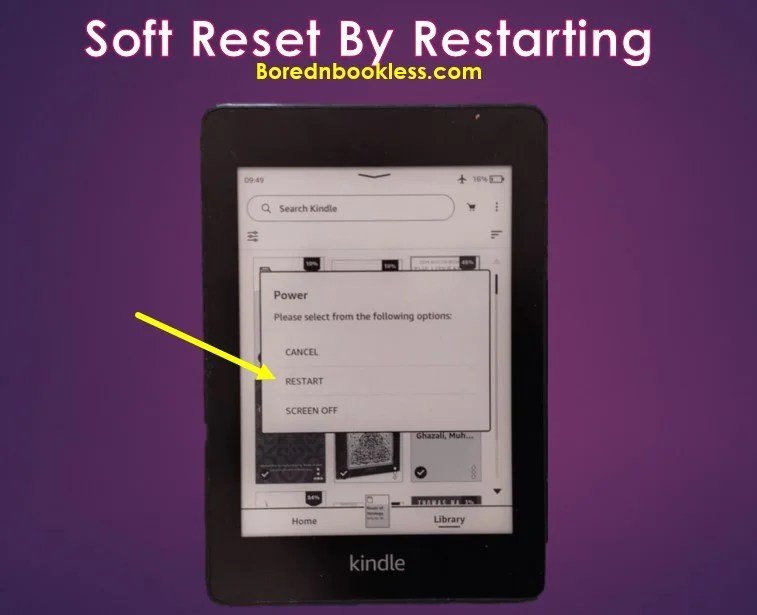
- Count to 30-40: Keep holding the button down. Your screen might go blank, or a "Power" menu might appear (with options like "Restart," "Screen Off," "Cancel").
- If a Power Menu Appears: Tap the "Restart" option directly if it's visible and your screen is still responsive.
- If the Screen Goes Blank or Stays Frozen: Continue holding the power button for the full 30-40 seconds. The device should automatically restart itself, often displaying a tree logo (for older models) or the Kindle logo.
- Release and Wait: Once the Kindle logo appears, you can release the power button. Your Kindle will boot up, which may take a minute or two.
After it restarts, your Kindle should function normally. Your books, Wi-Fi settings, and Amazon account registration will all be intact.
Method 2: Restarting Through the On-Screen Menus (If Your Kindle is Partially Responsive)
If your Kindle is responsive enough to navigate its menus, you can initiate a soft reset through the software. This method is consistent across Kindle Paperwhite, Oasis, and Basic models.
- Access Quick Actions/Settings:
- Swipe Down: From the top of the screen, swipe down to reveal the "Quick Actions" panel.
- Tap the Three Dots (Hamburger Menu): In the top-right corner, you might see three vertical or horizontal dots; tapping these often opens a menu.
- Navigate to Settings: Look for and tap the "Settings" gear icon or the "All Settings" option.
- Find Device Options: Within the settings menu, scroll down and select "Device Options."
- Select "Restart": You'll find a "Restart" option here. Tap it.
- Confirm: Your Kindle might ask for confirmation. Confirm that you want to restart.
Your Kindle will then shut down and restart, restoring normal operation without data loss. If you're encountering persistent issues that a soft reset can't fix, you might need to explore more advanced Kindle troubleshooting options or consider the hard reset as a last resort.
When a Hard Reset Becomes Necessary: The Nuclear Option
A hard reset is a powerful tool, but it should be used judiciously. It's your last resort for a device that's truly "bricked" by software (e.g., repeatedly freezing, unable to boot past the logo) or your first choice when preparing the device for a new owner.
Crucial Preparation Before You Hard Reset
Because a hard reset erases everything, a little preparation can save you a lot of grief:
- Backup Personal Documents: Any documents (PDFs, MOBI files, etc.) that you sideloaded onto your Kindle and are not stored in your Amazon Cloud will be permanently deleted. Transfer these to a computer or cloud storage before proceeding. Books purchased from Amazon can be re-downloaded, but if you have unique files, back them up!
- Kindle Unlimited/Prime Reading: A hard reset will not cancel your Kindle Unlimited subscription or affect your Prime Reading benefits. However, after the reset, your Kindle will be deregistered from your Amazon account. You'll need to re-register it and re-download your books.
- Charge Your Device: Ensure your Kindle has a sufficient charge (at least 50%) before starting the hard reset process. An interruption due to a dead battery could potentially cause further issues.
Step-by-Step Hard Reset Guide
The process for performing a factory reset is the same for Kindle Paperwhite, Oasis, and Basic models.
- Access Quick Actions/Settings:
- Swipe Down: From the top of the screen, swipe down to open the "Quick Actions" panel.
- Tap the Three Dots: Alternatively, tap the three dots (menu icon) in the top-right corner.
- Navigate to Settings: Tap the "Settings" gear icon or "All Settings."
- Find Device Options: Scroll down and select "Device Options."
- Select "Reset": Within "Device Options," you'll find an option labeled "Reset" or "Reset Device." Tap this.
- Confirm the Action: Your Kindle will present a warning message, explaining that all downloaded content will be removed, and the device will be deregistered. This is your last chance to back out if you're not ready. Confirm the action to proceed.
- Wait for Execution: The Kindle will then begin the process of erasing data and restoring factory settings. This can take several minutes. Do not power off your device or interrupt the process during this time.
- Reboot and Setup: Once complete, your Kindle will reboot and present you with the initial setup screens, just as it did when you first took it out of the box. You'll need to select your language, connect to Wi-Fi, and re-register it to your Amazon account.
If you're performing a hard reset to sell or trade your device, this step is crucial for preparing your Kindle for sale or gifting it securely.
Model-Specific Nuances (Paperwhite, Oasis, Basic)
One of the great things about the Kindle ecosystem is its consistency. For the purpose of restarting, whether it's a soft or hard reset, the steps outlined above apply almost universally to modern Kindle Paperwhite, Kindle Oasis, and Kindle Basic models.
- Button Placement: While the power button's exact location might vary slightly (e.g., bottom edge on Paperwhite, side edge on Oasis), its function for a long-press restart remains identical.
- Menu Navigation: The on-screen menu structure (Quick Actions > Settings > Device Options > Restart/Reset) is consistent across these devices, ensuring a familiar experience regardless of which model you own.
So, rest assured, the methods you've learned here are applicable no matter which specific Kindle you're holding.
Troubleshooting Tips & Best Practices
Sometimes, a restart isn't the full solution, or you might encounter issues even getting your Kindle to respond enough for a reset.
- Charge First: If your Kindle is completely unresponsive and won't even show a logo when you press the power button, plug it into a power source for at least 30 minutes, then try the soft reset (power button hold) again. A critically low battery can sometimes prevent any response.
- Try Different Chargers/Cables: If charging doesn't seem to work, test with a different USB cable and power adapter. Faulty accessories are a common culprit for charging issues.
- Ensure Updates: Occasionally, persistent bugs are resolved through software updates. If your Kindle is working after a restart, ensure it's running the latest software version by going to Settings > Device Options > Device Info (or About Your Kindle) and checking for update options. Checking for software updates can be a simple fix for many ongoing problems.
- Contact Amazon Support: If you've tried both soft and hard resets, ensured your device is charged, and you're still facing major issues (e.g., permanent screen damage, device won't turn on at all even after charging), it's time to contact Amazon Kindle Support. They can provide more advanced diagnostics or discuss repair/replacement options.
Common Questions & Misconceptions About Restarting Your Kindle
Here are some quick answers to common queries:
Q: Will a hard reset cancel my Kindle Unlimited subscription?
A: No, a hard reset does not cancel your subscription. It merely deregisters the device from your Amazon account. Once you re-register the Kindle, you'll regain access to your Kindle Unlimited library.
Q: How long does a Kindle restart typically take?
A: A soft reset (reboot) usually takes about 30-90 seconds to fully power cycle and bring you back to your home screen. A hard reset (factory reset) can take longer, typically 5-10 minutes, as it needs to erase data and re-initialize the system.
Q: What if my Kindle won't turn on at all, even after charging?
A: First, ensure you've tried charging it with multiple cables/adapters for an extended period (1-2 hours). If it still shows no signs of life, perform the 40-second power button hold while it's plugged in. If there's still no response, it could indicate a hardware failure, and contacting Amazon support is the next step.
Q: Does restarting affect my Wi-Fi settings or other preferences?
A: A soft reset does not affect your Wi-Fi settings, account registration, or other personal preferences. A hard reset will wipe all of these, requiring you to re-enter your Wi-Fi password and re-register your device to your Amazon account.
Q: Is there any risk of damaging my Kindle by restarting it too often?
A: No, performing a soft reset (reboot) will not damage your Kindle. It's a standard troubleshooting step. A hard reset, while more drastic, is also a designed function and won't harm the device when performed correctly.
For a broader understanding of general Kindle maintenance and troubleshooting, you might find our guide on how to restart your Kindle to be a valuable resource.
Your Kindle's Back to Normal: What's Next?
Once your Kindle Paperwhite, Oasis, or Basic has successfully restarted, you should find it behaving normally again. If you performed a soft reset, you can simply pick up where you left off. If you went for the hard reset, you'll need to go through the initial setup steps:
- Select Your Language: Choose your preferred language.
- Connect to Wi-Fi: Enter your Wi-Fi network details to get online.
- Register Your Device: Sign in with your Amazon account. This links your Kindle back to your library and subscriptions.
- Download Your Books: Head to your "Library" or "All" tab. Your previously purchased or borrowed content will appear in the cloud, ready for you to re-download.
With these steps, your Kindle will be fully restored, allowing you to dive back into the wonderful world of reading. Hopefully, this comprehensive guide has given you the confidence and know-how to tackle any future Kindle glitches with ease, keeping your reading experience smooth and uninterrupted.